

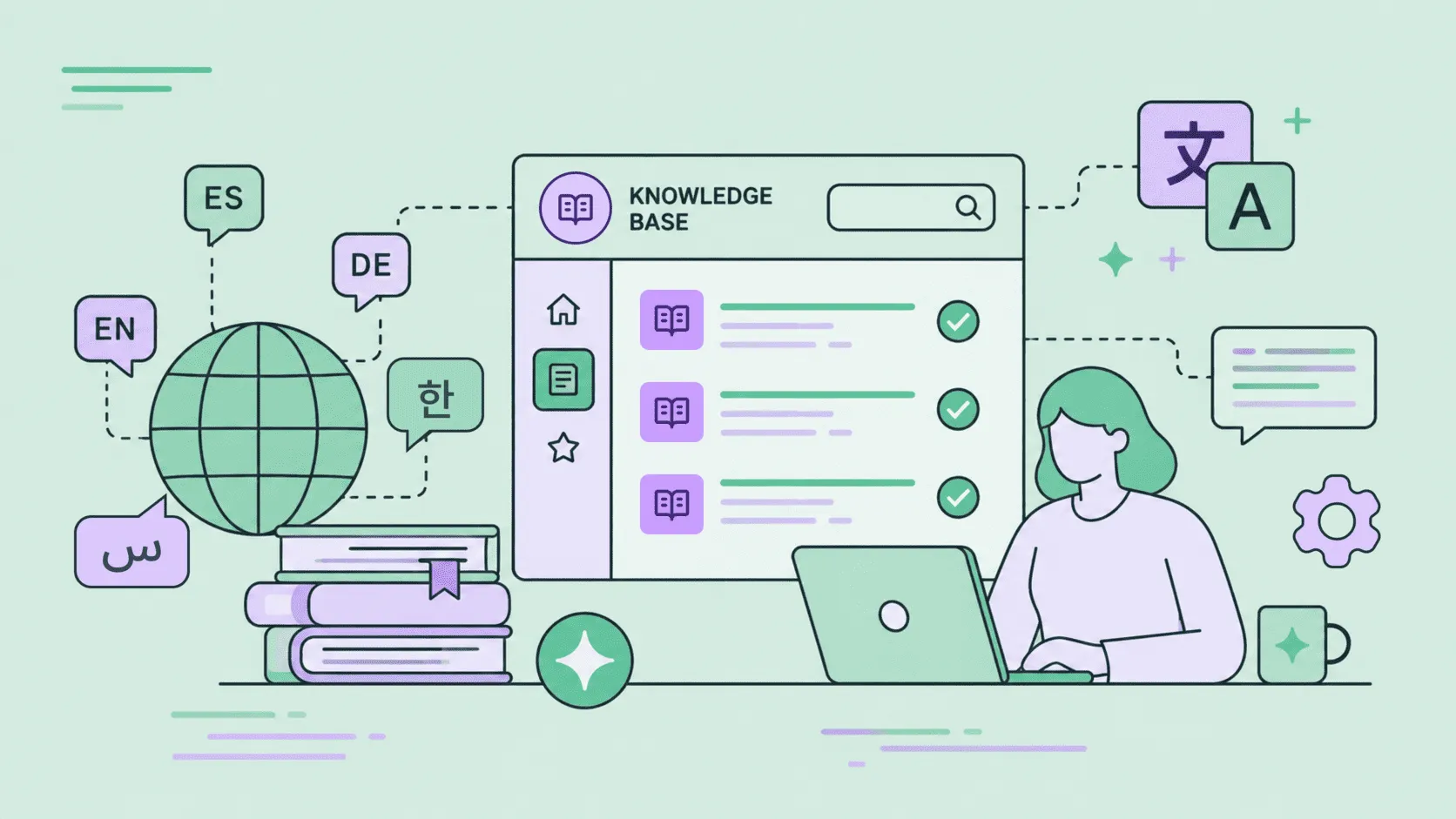
Today, the business case for a multilingual knowledge base is obvious. Expecting all global customers to read and use English documentation doesn’t work anymore, and relying on users to turn on automatic browser translation is a risky compromise. For technical content, product steps, or troubleshooting guides, browser translation is too unpredictable.
But when customers can’t find clear answers in their native language, they don’t give up – they simply open support tickets, flooding your queue with repetitive, easily preventable queries.
To stop this flood of tickets, most companies try to localize their knowledge bases. But this is exactly where they hit a second, much bigger bottleneck: the KB localization process itself.
In this guide, we will show you how to set up a continuous localization workflow for your help center:
- We will review the best multilingual knowledge base software
- Share 5 tips for technical writers to optimize content before translation begins
- Explore advanced AI localization strategies that keep your documentation consistent.
- Break down a step-by-step automation setup using ready-to-use Crowdin connectors.
Before going to the practical tips, let’s discover why a static knowledge base simply doesn’t work for a frequently changing product.
Problem with traditional KB localization
When companies first expand into new markets, they usually duplicate their existing knowledge base structure. They create separate language instances (like a “Zendesk FR” or a “Kustomer DE”) and treat them as completely separate projects
This approach works fine when you have ten articles. But it will never work when you have hundreds. And those hundreds are having some minor changes almost every day.
Here is why a static knowledge base fails modern technical and support teams:
- Documentation is never finished, it evolves with your product. When you update a single paragraph in an English article to clarify a UI change, that change rarely shows up in other languages right away. Over time, your translated articles stop matching the original version, leading to confused international users and an raise of avoidable support tickets.
- Manual localization is not an option because it wastes high-value support resources. Having a support manager act as a human router (exporting CSVs, tracking strings in spreadsheets, and manually uploading HTML blocks into Help Desk platforms) is an expensive and outdated way to manage content.
- Good customer experience relies on speed. If a German user encounters an issue after an update, but your German knowledge base doesn’t mention the fix yet, your self-service strategy has failed. They will open a ticket, increasing your support costs and lowering your customer satisfaction.
To keep up with regular release cycles, teams should implement multilingual knowledge base automation solutions. The goal is simple: when an article changes in your primary language, the localized versions must adapt automatically and in near real-time. But how? Let’s see what’s down in this article.
Choose a knowledge base platform that supports multilingual content
The very first step is to make sure your help center platform can handle multiple languages and connect to external tools. Instead of buying a standalone system, the best option is usually a customer service that already has a powerful, built-in help center module.
This means you can connect them in a few clicks without any developer help. Here are the top choices in 2026:
 Kustomer
Kustomer treats help articles as native data tied directly to customer timelines. It is a powerful option for fast-growing support teams that rely on deep customer data and automated workflows.
 HelpScout
Known for its clean, user-friendly interface. While HelpScout Docs makes creating articles simple, managing language variants manually can slow you down. A dedicated connector completely automates the bridge – pulling new Docs articles for translation and pushing finished versions back without copy-pasting.
 Zendesk Guide
One of the most popular enterprise help center platforms with robust built-in multi-language layouts. It scales well for large enterprise teams but requires structured management.
 Intercom
Excellent for teams heavily reliant on conversational support and automated chatbots. Localizing your Intercom articles ensures your AI bots can surface the right answers to global users in real-time.
 Freshdesk
A highly intuitive alternative to Zendesk that scales well for mid-sized teams and supports multi-language folder architectures.
 Document360
A specialized tool built purely for internal and external documentation with great built-in authoring tools.
 HelpDocs
A focused, lightweight software built specifically to create self-serve knowledge bases and drive down support ticket volumes.
Why use a TMS if KB already has built-in translation?
Almost every help desk has a native button to add another language, and many are now adding built-in AI buttons to translate text directly inside their editor. That’s where you may ask: why do I need a translation management system (TMS) to translate that content if I can simply do that inside KB?
These platforms are great at hosting content, but they are not built for managing a localization workflow.
If you rely only on your help desk’s native features, you will quickly face these problems:
1. No сentralized brand voice
A basic AI translation inside a knowledge base platform usually just runs your text through a standard prompt. It doesn’t know your brand’s unique tone of voice and often literally translates your specific technical terms.
In Crowdin, AI works within a strict linguistic framework. You connect your glossaries and style guides, giving the AI and human translators strict rules: which terms to never translate (like product names), what tone to use (casual vs. formal), and how to adapt phrasing for specific markets. This ensures your knowledge base sounds professional and consistent across all languages.
2. AI context problem
When you click “translate” inside a KB, the AI sees the sentence as isolated text. It has no idea where that text lives or what it does. Crowdin completely changes this by keeping the AI inside the exact context of your project:
- AI-generated file context: If you haven’t set a specific context for an article, Crowdin automatically analyzes the whole document and generates a contextual summary for the AI. The AI understands the big picture of the article before translating a single word.
- Visual context: Both the AI and human reviewers can see exactly how the article looks on the page. They see what is a heading, what is a button label, and what is an image caption, which completely eliminates translation blunders.
- Understanding text location through keys: When Crowdin pulls articles from your knowledge base, it breaks them down into segments, and each segment is tied to a specific key. Because the AI operates within the entire Crowdin project ecosystem, it uses these keys to understand exactly where a sentence lives structurally. Knowing the precise location of the text allows the AI to choose the perfect tone and meaning, rather than just guessing based on a single isolated phrase.
3. No human-in-the-loop workflow
AI is fast, but for important technical documentation, public safety notices, or billing guides, you may choose not to blind-trust machine output. If a native help desk AI makes a critical mistake, how do you fix it across all languages quickly?
Inside Crowdin, you can easily build a hybrid workflow: AI does the first draft in minutes, and your native-speaking support agents or professional translators get a clean editor to review, edit, and approve AI translations.
4. Problems with version control
What happens when your technical writer updates just one sentence in a 2,000-word English article? If you use a native KB AI for translation, you will likely have to regenerate and pay for the entire article again, and then manually find what changed.
Crowdin automatically tracks changes at the string level. It isolates exactly what changed, sends only that new sentence to be translated, and leaves the rest of your approved article completely untouched.
5. Paying twice for the same sentence
Help desk platforms don’t remember your past content. If you have 50 different articles that all use the exact same warning banner or setup instructions, a native help desk will make you translate that sentence 50 individual times.
Crowdin’s translation memory recognizes text you’ve already approved before and fills it in automatically, saving up to 40-60% of your localization budget.
6. Centralization vs. isolated translations
If your marketing team runs the main website on Webflow, your content writers manage blogs in Contentful, and your help center lives on a separate platform, their built-in AI tools won’t talk to each other. This fragmentation leads to inconsistent terminology across your channels.
Localize your product with Crowdin
5 steps to make your knowledge base multilingual
Choose the right KB platform
- Set up target locales
- Keep text neutral
- Avoid dates and humor
Connect to a TMS
- Install Crowdin integration
- Automate content sync
- Avoid manual copy-paste
Translate efficiently
- Leverage AI and MT
- Use Translation Memory
- Connect brand glossaries
Review and verify
- Run automated AI QA
- Human proofreading
- Local expert approval
Sync translations and publish
- Auto-push back to KB
- Maintain formatting
- Enable multilingual search
How to set up continuous KB localization with Crowdin
Connecting a specialized localization platform like Crowdin to your knowledge base completely automates the process through ready-to-use connectors. Here is how it works in 4 simple steps:
Step 1: Connect via Crowdin Store
Instead of building custom APIs, you install the application (e.g., Kustomer integration, Zendesk Guide connector) from the Crowdin Store. You log in, select the specific folders or categories you want to localize, and establish the link.
Step 2: Prepare your brand rules and context
When you run translations through Crowdin, the AI isn’t guessing. It operates within a strict framework that fixes the flaws of generic help center AI:
To see exactly how to combine these rules for different types of articles, you can jump straight to our AI translation strategies section below.
Step 3: Set up automatic sync and human-in-the-loop
You set up a sync schedule (for example, every Monday morning). Crowdin automatically checks your knowledge base for any new articles or recent edits. Thanks to string-level change tracking, it pulls only modified sentences.
Once inside Crowdin, you can use a hybrid workflow: AI does the first draft in seconds, and your native-speaking support agents or professional translators use a clean, collaborative editor to review and approve the text.
Step 4: Auto-publish translated documentation
As soon as a translation is approved, Crowdin pushes it back to your knowledge base automatically. It maps the article to the correct language section, keeping the exact same formatting, links, and images.
Crowdin also localizes your article titles, SEO descriptions, and tags. This is the key to enabling multilingual search in your knowledge base. When users search in their native language, your system will immediately show them the correct article. Read more about SEO localization.
AI translation strategies for your knowledge base
When you use a translation management system, AI is no longer just a “translate everything” button. Different types of knowledge base content require different levels of quality and speed. To handle this, you can mix and match 3 distinct AI translation strategies depending on the article’s priority:
Pure AI Auto-translation
This strategy is perfect for internal documentation or low-priority articles. AI translates your text, runs quality checks, and publishes it straight to your knowledge base.
The rule here is simple: the more context you provide, the better the results. If you feed the AI your full ecosystem – glossaries, style guides, screenshots, comments, and AI-generated file context – your translation accuracy will improve.
To make this approach more reliable, add a customized AI QA check step. Writing a tailored verification prompt ensures the AI specifically double-checks the text against your style guide and glossary, catching any formatting issues, untranslated terms, or off-brand tone before the article goes live.
TM + AI + Linguists workflow
This is the gold standard set up for public-facing customer help centers. Before any new content reaches the AI, the system automatically checks your Translation Memory (TM). If you’ve translated a sentence or a warning banner before, the TM fills it in, ensuring you never pay twice for the same translation.
Only the remaining untranslated text is sent to the AI for instant auto-translation – and just like with pure auto-translation, the more context you provide here, the better the AI translations will be. Finally, your linguists or professional linguists review, edit, and approve the text in the Editor.
It is faster than translating from scratch but guarantees 100% technical and stylistic accuracy.
AI Pipeline with File Consistency step
With AI Pipeline app, you don’t just run a single “translate” command. Instead, you build a multi-step sequence where different AI agents handle specific tasks – from text pre-processing and translation to quality checks and cultural adaptation. (To see how to design these workflows, check out Crowdin’s guide on Mastering AI Localization Pipelines).
For technical writing and help centers, there is one secret, highly specialized step you should absolutely include in your pipeline: File Consistency.
How does it work? When a writer updates just 10% of an existing article, a standard AI translates that fragment in isolation, often ruining the tone. The File Consistency step fixes this by scanning the other 90% of the document first. This ensures the new translation perfectly matches the established terminology, style, and flow of the rest of the page.
Sounds complicated? Don’t worry! Our Business Development Managers are here to help you set up your AI localization workflow.
Bonus: 5 rules for writing localization-friendly KB articles
Automation works best when the source content is built to scale. If a knowledge article is packed with local idioms, complex grammar, or over formatted, even the most advanced AI will struggle to adapt it cleanly.
To help your technical writers save time and budget, follow these 5 rules for writing localization-friendly KB articles:
Write directly and objectively
- Avoid idioms, slang, and humor
Use neutral date and time formats
- ❌ 05/06/2026
- ✅ June 5, 2026
Keep sentences short and consistent
- Long sentences increase the risk of translation errors
- One core idea per sentence
- Use consistent terminology
Avoid text baked into images
- Use articles and numbers on the screenshots
- Put all the descriptive text into the body of the article
Write concisely to minimize text expansion
- Keep your source text as lean as possible
- Avoid unnecessary filler words
1. Avoid idioms, slang, and humor
Phrases that sound natural and cool in English (like “piece of cake”, “under the hood”, or “hit the ground running”) can confuse global users completely when translated literally. Write directly and objectively: use “easy to configure” instead of “a breeze to set up”, and “internal architecture” instead of “what’s under the hood”.
2. Use neutral date and time formats
Writing a numerical date like 05/06/2026 is a recipe for disaster in multilingual products. To a US user, that is May 6th; to a European user, it is June 5th. Always spell out the month (as example, June 5, 2026) or use the international standard ISO format (YYYY-MM-DD) to avoid dangerous confusion in your product and troubleshooting guides.
3. Keep sentences short and consistent
Long, complex sentences with multiple clauses increase the risk of translation errors. Aim for one core idea per sentence. Furthermore, use consistent terminology. If you write “Click the button” in one article and “Hit the key” in another, the system will treat them as entirely different lines, meaning you lose the cost-saving benefits of your Translation Memory.
4. Avoid text baked into images
If you take a screenshot of your app with English UI text and drop it into an article, that text cannot be extracted or translated by AI. Whenever possible, use arrows or highlights directly on the UI element, and put all the descriptive text into the body of the article where the translation tool can easily access and localize it.
5. Write concisely to minimize text expansion
Some languages can be 20% to 30% longer than English to say the exact same thing. While you don’t design the help center layout yourself, you can help by keeping your source text as lean as possible. Avoid unnecessary filler words. Also, be mindful when creating multi-column tables or dense bullet points inside your articles – write short, punchy sentences so the translated text won’t overflow or become unreadable in the final layout.
Wrapping up
Relying on built-in help desk translation tools or manual copy-pasting is no longer a viable strategy. Frequently changing product demands a knowledge base that evolves in real-time, across all languages simultaneously.
Pair your knowledge base with a dedicated translation management system like Crowdin to eliminate the localization bottleneck. Implement automated syncing, use custom AI workflows, and train your technical writers to build localization-friendly content and all that will decrease your customer support ticket volumes.
Make your knowledge base multilingual with Crowdin
FAQ
What is a multilingual knowledge base?
A multilingual knowledge base is a centralized, self-service customer support library that hosts help articles, troubleshooting guides, and product documentation in multiple languages. Instead of forcing international customers to use generic browser translation, it serves natively localized content to help users resolve issues independently.
Why use a translation management system (TMS) instead of built-in help desk translation tools?
While customer service platforms are great at hosting text, they lack advanced localization workflows. A dedicated TMS like Crowdin saves 40-60% of translation budgets through translation memory (reusing past translations) and string-level version control (isolating edits so you only translate and pay for the specific sentences that actually changed). It also connects your centralized glossaries and visual context to ensure a unified brand voice that native help desk widgets can’t match.
Can AI completely handle technical documentation translation?
Yes, but the strategy should depend on content priority. For internal release notes, AI auto-translation with automated QA checks works well. However, for high-stakes customer help centers, a hybrid approach (TM + AI auto-translation + human review) is more reliable. This uses AI to generate the first draft and native-speaking linguists or support agents to approve it for 100% technical accuracy.
How do you make a knowledge base SEO-friendly in multiple languages?
To ensure your localized articles rank on global search engines, your translation workflow must look beyond the main body text. Using an automated connector ensures that article titles, URL slugs, meta descriptions, and search tags are fully translated. This indexes your content properly on Google and enables the multilingual search bar inside your help center to surface the right answers immediately.

Julia Herasymchuk
Julia Herasymchuk is the Content Manager with over 8 years of experience. She is a skilled professional at crafting compelling, well-researched content that resonates with audiences.